
If you’ve ever thought about starting a website but didn’t know where to begin, you’ve probably already heard of WordPress. It’s the software behind a huge portion of the world’s websites — from personal blogs and portfolios to major news outlets and online stores. But what is WordPress, exactly? How does it work, and is it the right choice for your project?
This beginner’s guide answers all of that. You’ll learn what it is, what it’s used for, how it works under the hood, the difference between WordPress.org and WordPress.com, what it costs, how to install and log in to it, whether it’s secure and good for SEO, and how long it really takes to learn. By the end, you’ll know exactly how to start your own website — and whether you should.

What Is WordPress?

WordPress is a free, open-source content management system (CMS) — software that lets you build, manage, and publish a website without writing code. Instead of hand-coding every page, you install it, log in to a visual dashboard, and create content through an editor that feels similar to a word processor. It handles the technical work: storing your content in a database, assembling pages when visitors arrive, and keeping your site’s design and content connected.
WordPress started life in 2003 as a simple blogging tool, created by Matt Mullenweg and Mike Little as a fork of the b2/cafelog publishing platform. It was released under the GNU General Public License (GPL), an open-source license that gives anyone the freedom to use, modify, and redistribute the software. That one decision shaped everything that followed: because the source code is open to everyone, a global community of volunteers and companies has spent more than two decades improving it, extending it, and supporting it.
Over time, WordPress grew from blogging software into a full website-building platform. Today it’s written in the PHP programming language and paired with a MySQL or MariaDB database, and it uses a block-based content editor (introduced in 2018 under the codename “Gutenberg”) that makes page building visual and intuitive. Estimates from web technology tracker W3Techs put it on roughly four in ten websites in 2026 — about 41% in mid-2026, with figures varying slightly by source and methodology. That’s why you’ll hear it described as the world’s most popular CMS: no other platform comes close.
Two things make WordPress especially beginner-friendly. First, you own your website: the software is free, there’s no platform lock-in, and you can move your site wherever you like. Second, you don’t build alone — there’s a massive ecosystem of free themes (design templates) and plugins (feature add-ons) that let you create almost any kind of website by pointing and clicking. That’s the short answer to “what is WordPress”: it’s the easiest proven way for a beginner to build a real, professional website.
What Is WordPress Used For?
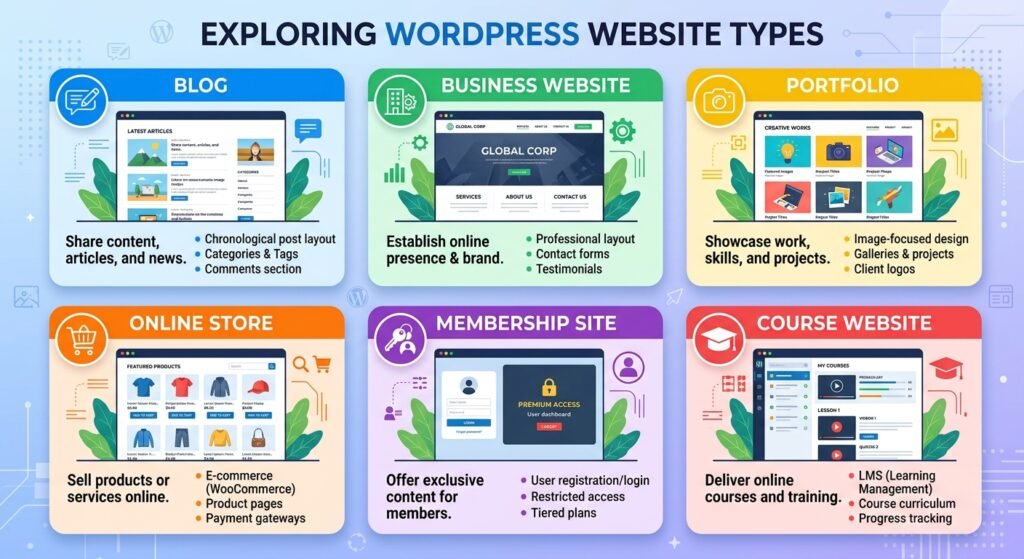
A common question beginners ask is: what is WordPress used for, exactly? Because it began as blogging software, many people assume that’s still its limit. In reality, it is now a general-purpose website builder used for nearly every type of website you can imagine. Here’s a tour of the most popular uses.
Blogs and Personal Websites
Blogging is where WordPress began, and it remains one of its strongest uses. The platform was built around publishing posts, organizing them by category and tag, and displaying them in a reader-friendly feed — the core structure of a blog. Millions of personal websites, hobby blogs, travel journals, food blogs, and diaries run on WordPress.
For a beginner, starting a blog is the simplest possible path: pick a clean theme, write your first post in the block editor, and hit publish. Built-in features like comments, categories, archives, and RSS feeds come standard, and you can add things like newsletters or social sharing with free plugins. If your goal is to write and be read, it remains the natural home for writers.
Business Websites
Small businesses were some of the earliest adopters of the platform beyond blogging, and for good reason. A typical business website — homepage, about page, services pages, contact page with a form — can be built in a day or two without hiring a developer. Thousands of free and paid business themes provide professional designs for industries from law firms to restaurants to local contractors.
What makes the platform especially appealing for business is control and cost. You own the site and its content, your hosting can be switched at any time, and the software itself is free — a meaningful difference from paying a platform forever. As the business grows, the same site can scale: add booking systems, customer portals, or an online store without rebuilding from scratch.
Portfolio and Freelancer Websites
Freelancers, designers, photographers, writers, and consultants use it to build portfolio websites that showcase their work. Gallery and portfolio themes make it easy to present projects visually, and pages can be customized to match a personal brand.
For freelancers, a portfolio site does double duty: it acts as a public résumé and as a credibility anchor when pitching clients. Adding a contact form, testimonials, and a services page turns the portfolio into a client-generating tool. Because most freelancer sites are small and simple, a free theme and a handful of pages are usually all that’s needed — which keeps costs close to zero.
E-commerce Stores
WordPress powers a huge number of online stores through WooCommerce, the most widely used e-commerce plugin, which is developed by Automattic (the company founded by WordPress co-founder Matt Mullenweg). WooCommerce turns a site into a full online shop with product pages, a shopping cart, checkout, payments, shipping options, taxes, and order management.
Small businesses love this combination because it avoids the monthly fees of hosted store platforms and keeps full control of customer data and design. While setting up a store takes more work than a simple blog — products, payment gateways, shipping rules — WooCommerce’s setup wizard walks you through the essentials. For beginners planning to sell products online, WordPress with WooCommerce is one of the most affordable serious options available.
Membership Websites
A membership website is one where visitors create accounts to access content — think subscription-based courses, premium articles, online communities, or paid resource libraries. It handles this well through membership plugins, which let you create membership levels, restrict content to paying members, accept recurring payments, and manage member accounts.
Common examples include fitness coaching sites with subscriber-only workout plans, professional associations with member directories, and news sites with paywalled articles. The same user-role system that powers site teams also works for members, so you can give different content access to different membership tiers. This flexibility is a big reason membership sites are one of the classic “what is WordPress used for” answers.
Online Course and Education Websites
It has become a popular platform for online courses and education websites thanks to learning management system (LMS) plugins. These plugins add course builders, lesson pages, quizzes, progress tracking, and certificates to a regular site. Teachers, coaches, and training companies use them to sell courses directly instead of paying a cut to a course marketplace.
A typical course site might offer a catalog of courses, student dashboards showing progress, quizzes after each lesson, and downloadable certificates on completion. Combined with WooCommerce or a membership plugin for payments, the result is a self-hosted learning platform the course creator fully owns — including student data and pricing control.
News, Magazine, and Content Websites
From local news outlets to niche online magazines, many content-heavy websites run on WordPress. The posts-and-categories system that powers blogs scales naturally to editorial publishing: multiple authors, editor review workflows, featured stories, topic sections, and archives organized by date or category.
Large publishers value WordPress for the same reasons beginners do — a familiar editor, an enormous talent pool of people who already know the platform, and plugins for paywalls, ad management, newsletters, and SEO. Because it powers such a large share of the web’s news content, many journalists and editors already know their way around the dashboard on day one.
How Does WordPress Work?
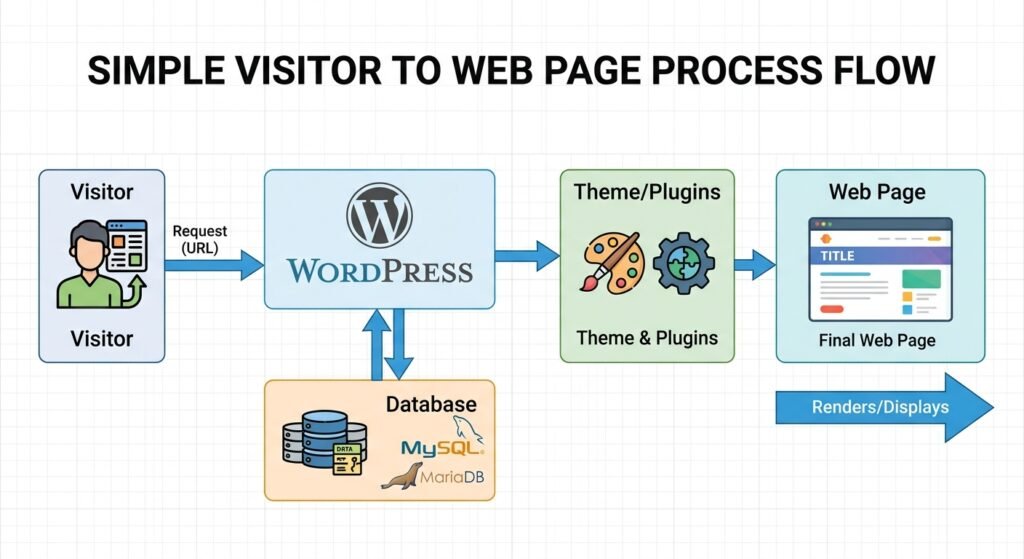
WordPress can look mysterious to a beginner — content, design, plugins, dashboards, databases — but it works through a simple idea: it separates your content from your design, and gives you a visual control panel to manage both. Instead of building web pages by hand, you enter your text and images into the platform, and the software assembles them into pages whenever a visitor arrives. Understanding the handful of pieces below is all you need to use it confidently.
WordPress Core

the core is the foundational software itself — the files you download and install to create a site. It handles the essential jobs every website needs: managing content, user accounts, comments, and settings; routing visitors to the right pages; and providing the framework that everything else (themes and plugins) attaches to.
Core is written in PHP and stores your content in a MySQL or MariaDB database. When someone visits your site, the software pulls the right content from the database, wraps it in your theme’s design, and serves the finished page. One of the most useful traits of the core is how carefully backward compatibility is handled: sites can often run for years, upgrading through new versions without breaking. Updates to core are free and arrive regularly, adding features, fixing bugs, and patching security issues.
Themes
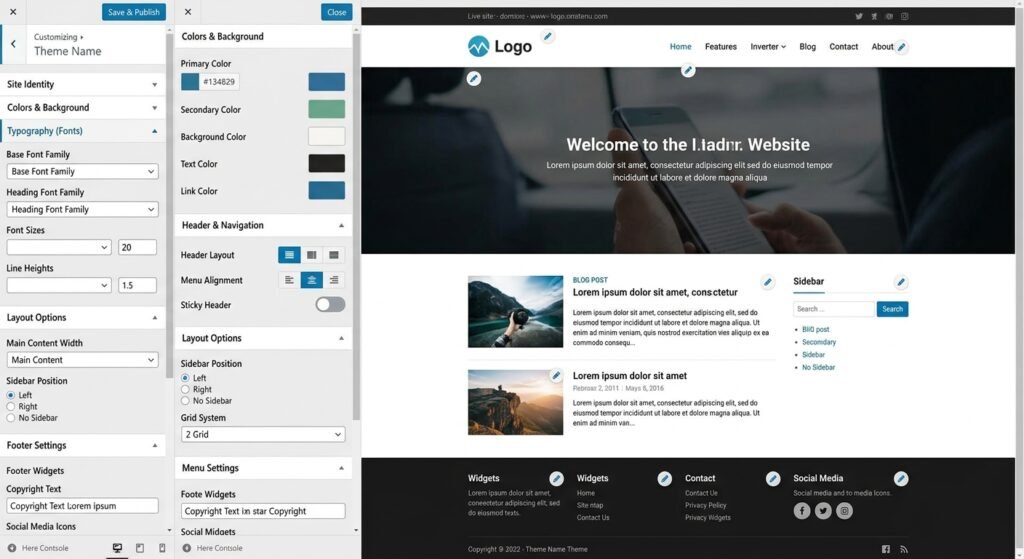
A theme is a design template that controls how your site looks — its layout, colors, fonts, and page styles. Your content lives separately from your theme, which means you can change your entire site’s appearance by switching themes without losing a single word you’ve written.
There are thousands of free themes in the official WordPress.org theme directory, plus paid “premium” themes from independent marketplaces. Many modern themes support full-site editing with the block editor, letting you visually customize headers, footers, and page layouts without touching code. Beginners should start with a well-reviewed, actively updated theme and a simple design; you can always upgrade or switch later.
Plugins
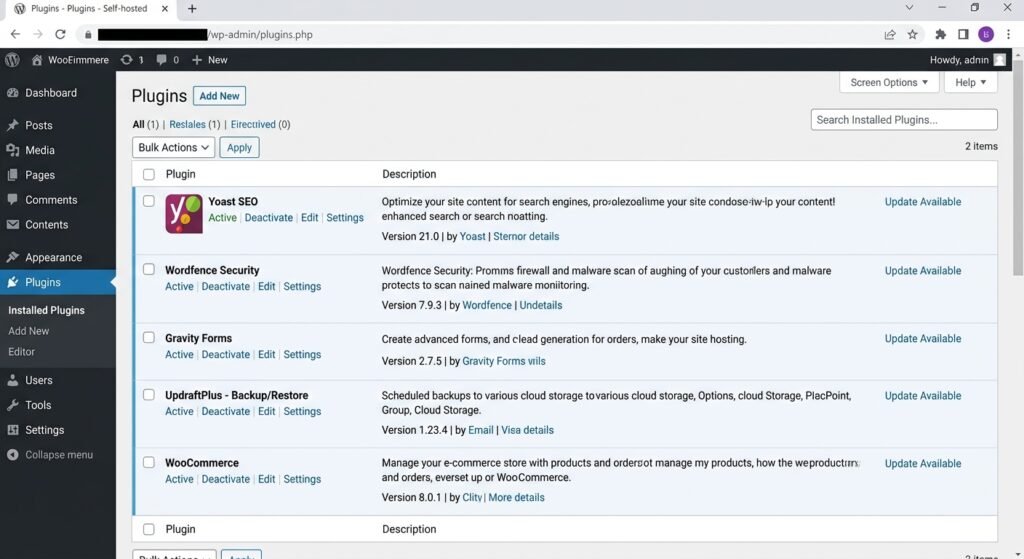
A plugin is a small add-on that extends what the platform can do. If core is the engine and the theme is the paint job, plugins are the optional features: contact forms, image galleries, SEO tools, backup systems, spam filters, e-commerce, memberships, and more.
The official WordPress.org plugin directory lists tens of thousands of free plugins (over 59,000), each with ratings, download counts, and update histories you can check before installing. Installing a plugin takes seconds from your dashboard. The key rule for beginners: only install plugins you actually need, from reputable developers, and keep them updated. Too many plugins — or abandoned ones — can slow your site or cause conflicts, so quality matters more than quantity.
WordPress Dashboard
The the dashboard is your site’s control panel — the back office where everything is managed. You reach it by logging in at your site’s admin address (more on the login page below), and from there you can create content, change settings, install themes and plugins, manage comments, view site health, and handle updates.
The dashboard is organized with a left-hand menu: Posts, Media, Pages, Comments, Appearance, Plugins, Users, Tools, and Settings. It can look like a lot at first, but most daily work happens in just two or three spots — Posts or Pages to write content, Media to manage images, and Appearance to adjust your theme. Spending an hour clicking around the dashboard is the single fastest way to get comfortable with WordPress.
Posts and Pages
The platform organizes content into two main types: posts and pages. Understanding the difference is one of the first “aha” moments for beginners.
Posts are time-based content — blog articles, news updates, announcements. They appear in reverse chronological order on your blog page, can be organized with categories and tags, and typically allow comments. Pages are timeless, standalone content — your homepage, About page, Contact page, services descriptions. Pages don’t use categories or tags, and they sit in your site’s navigation menu.
The rule of thumb: if it has a date and belongs in a feed, it’s a post; if it’s a permanent part of your site’s structure, it’s a page. Both are created with the same block editor, so once you learn one, you know both.
Media Library
The media library is the platform’s built-in storage for images, videos, audio files, and documents. When you upload a file — whether while writing a post or directly through the Media menu — it’s stored here, automatically generating multiple image sizes so your theme can load the right one for each situation.
From the media library you can add titles and alt text (important for accessibility and SEO), replace or delete files, and see where each file is used. A practical tip for beginners: compress images before uploading them. Large photos straight from a phone or camera slow your site down; free plugins or online tools can shrink file sizes dramatically without visible quality loss.
Users and User Roles
The platform includes a built-in system for multiple users, each with a role that controls what they can do. This matters if anyone besides you will ever touch the site — an editor, a freelancer, a guest author.
The standard roles are:
Administrator — full control: everything, including settings, themes, plugins, and users. (Guard this role carefully.)
Editor — can publish and manage all posts and pages, but can’t change settings or install plugins.
Author — can write, upload media to, and publish their own posts.
Contributor — can write and edit their own posts, but can’t publish them; an Editor or Administrator must approve.
Subscriber — the basic account: can manage their own profile and, on sites with memberships or comments requiring login, interact accordingly.
Always give people the lowest role that lets them do their job. Many security problems start with too many Administrator accounts.
WordPress.org vs WordPress.com: What’s the Difference?
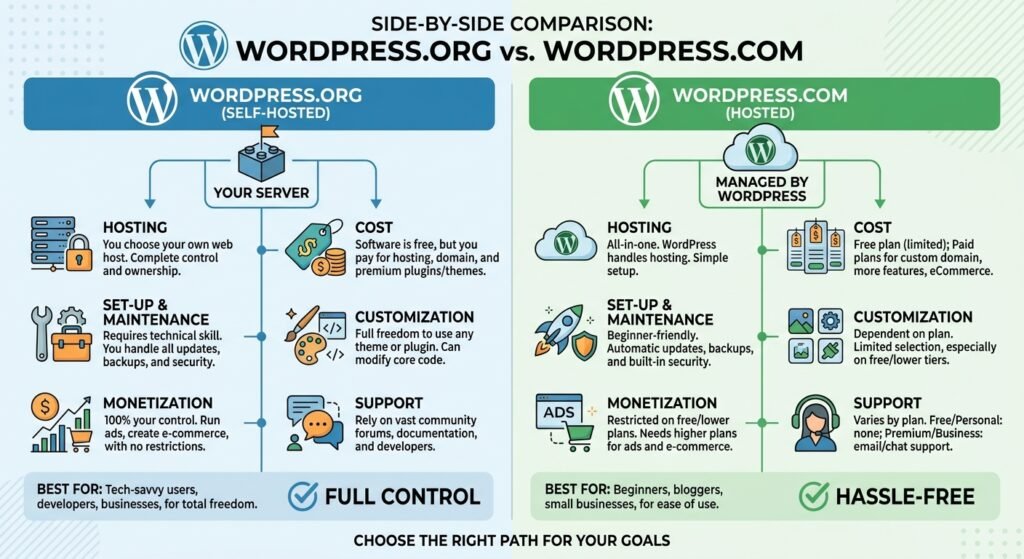
This is the most confusing question for beginners — and one of the most important. WordPress.org and WordPress.com sound nearly identical, and they’re closely related, but they represent two very different ways of using WordPress. Getting this right at the start saves a lot of frustration later.
What Is WordPress.org?
WordPress.org is the home of the free, open-source software. It’s the project’s official website, where anyone can download WordPress for free and install it on their own web hosting. This is often called “self-hosted WordPress.”
With WordPress.org, you own and control everything: your files, your database, your design, your data. You choose your hosting company, you install any themes and plugins you like, and you can customize or even rewrite the code. The tradeoff is that you (or your hosting company) are responsible for maintaining the site — updates, backups, and security are in your hands. There is no single customer support desk, though the community forums are extensive.
When people say “WordPress is free and open source,” they mean WordPress.org. This is the version the rest of this guide focuses on, and it’s what most tutorials, plugins, and developers mean when they say “WordPress.”
What Is WordPress.com?
WordPress.com is a commercial service run by Automattic, the company founded by WordPress co-founder Matt Mullenweg. It offers WordPress as a hosted service: you create an account, and Automattic handles the hosting, installation, updates, security, and backups for you. The software it runs on is WordPress — the same open-source code — but the experience is a managed product.
WordPress.com offers a free tier (with a WordPress.com subdomain like yoursite.wordpress.com, ads, and limited features) and paid plans that unlock custom domains, more storage, and — on higher tiers — the ability to install plugins and themes. Plan names, features, and prices change over time, so always check the current WordPress.com pricing page before deciding.
The key tradeoff: WordPress.com is simpler and more hands-off, but you give up control. Lower-tier plans restrict plugins, themes, and monetization, and migrating away to a self-hosted site later is possible but takes effort.
WordPress.org vs WordPress.com Compared
| WordPress.org (self-hosted) | WordPress.com (hosted service) | |
|---|---|---|
| Hosting | You choose and pay for your own web hosting | Hosting included and managed by Automattic |
| Domain | Use any custom domain you register | Free subdomain on lower plans; custom domain requires a paid plan |
| Software cost | WordPress software is free | Free tier available; paid plans unlock features (check current pricing) |
| Control | Full control: files, database, code, everything | Limited by plan; higher tiers unlock more |
| Themes | Any of thousands of free themes, plus premium themes | Limited selection on lower plans; full access on higher-tier plans |
| Plugins | Any of 59,000+ plugins; upload your own | Only on higher-tier plans |
| Maintenance | Your responsibility (updates, backups, security) — many hosts help automate this | Handled by Automattic |
| Monetization | Full freedom: ads, e-commerce, memberships | Restricted on lower plans; varies by plan |
| Best for | Blogs, businesses, stores, anyone wanting full ownership and growth room | Beginners wanting the simplest, most hands-off start |
Which WordPress Option Is Right for a Beginner?
For most beginners with serious plans — a business, a store, a professional blog — WordPress.org (self-hosted) is the better long-term choice. It costs a little money (hosting and a domain, usually a few dollars a month), but you get full ownership, no feature ceilings, and the ability to grow without migrating later. Most reputable hosts now offer one-click installation, so “self-hosted” is far less technical than it sounds.
WordPress.com can make sense if you want the absolute simplest start — a hobby blog or test site where you don’t want to think about hosting, updates, or backups. Just be aware of the ceiling: if you later need custom plugins, a specific theme, or full monetization, you may need to upgrade to a higher plan or migrate to WordPress.org anyway.
A practical rule: if you might ever want to earn money from your site or grow it beyond a hobby, start with WordPress.org. If you want to try blogging with zero commitment this afternoon, WordPress.com’s free tier is a fine sandbox.
Why Is WordPress So Popular?
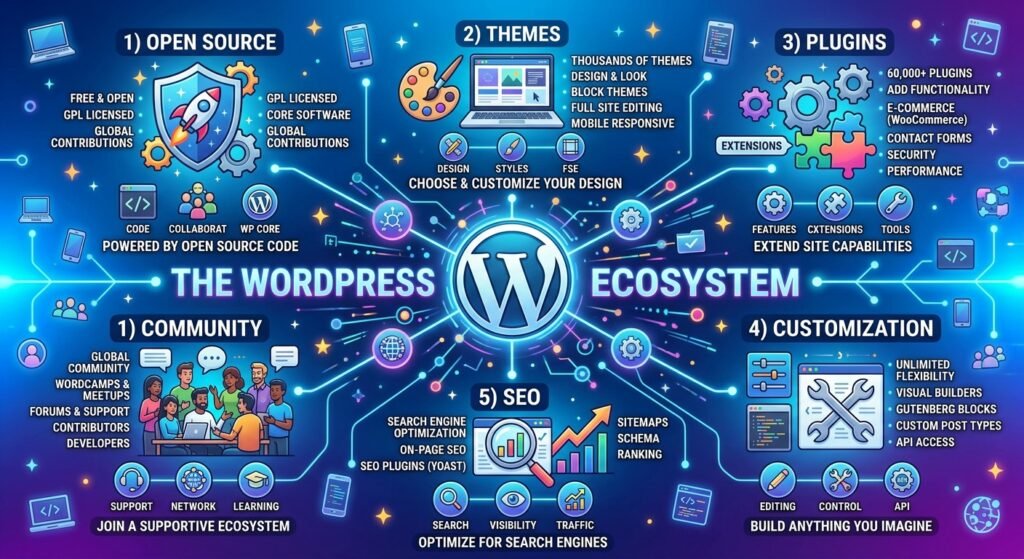
WordPress powers a larger share of the web than any other content management system — by an enormous margin. That didn’t happen by accident. Several reinforcing reasons explain why so many beginners, businesses, and developers keep choosing it year after year.
WordPress Is Free and Open Source
the software costs nothing. You can download it, install it on as many sites as you like, modify it, and even use it for commercial projects — all free. That’s the power of its GPL open-source license.
“Free” also means freedom. There’s no vendor lock-in: your content and data are yours, stored in a standard database you control. If a hosting company treats you badly, you can move your entire site elsewhere. If WordPress.com or any single company disappeared tomorrow, the WordPress.org software would still work on your own server. That independence is rare among website platforms and a huge reason people trust it with their livelihoods.
Easy to Use for Beginners
WordPress was designed so that non-technical people could publish on the web. The dashboard is visual, the block editor works like a word processor, and installing a theme or plugin takes a few clicks — no coding required for the vast majority of sites.
There’s a gentle learning curve, like any new software, but it’s remarkably shallow compared to building a site from scratch or even compared to some modern website builders. Most beginners can publish their first post within an hour of installation, and the basics — pages, menus, media, settings — are learnable in days, not months.
Thousands of Themes and Plugins
Need a booking system? There’s a plugin for that. A photo gallery, a contact form, a store, a forum, an events calendar, a newsletter signup? Plugins for all of them — tens of thousands of free ones in the official directory, plus thousands of premium options. The same goes for design: thousands of themes cover nearly every look and industry.
This ecosystem is its superpower. Instead of paying a developer to build custom features, you assemble your site from proven, reviewed components. For beginners, that turns ambitious ideas (“I want a membership site with courses”) into realistic weekend projects.
Flexible and Customizable
It grows with you. A site that starts as a simple blog can become a business website, then a store, then a membership platform — all on the same installation, by adding themes and plugins along the way. Developers can go further, customizing themes and writing custom code, because the entire platform is open.
That flexibility also means you’re never trapped by a template’s limits. On many closed website builders, you eventually hit a wall: a feature they don’t offer, a design you can’t achieve, a fee for every little thing. Here, walls are rare and usually solvable.
SEO-Friendly
WordPress is widely considered good for SEO — search engine optimization — out of the box and even better with plugins. It generates clean, readable URLs; handles titles and headings sensibly; produces semantic HTML that search engines parse easily; and makes it simple to organize content with categories, tags, and internal links.
Add a free SEO plugin and you get control over meta titles and descriptions, XML sitemaps, schema markup, and readability analysis. To be clear: It gives you the tools, but it doesn’t rank your content for you — quality content and good SEO practices still do the heavy lifting. (More in the WordPress SEO Basics section.)
Large Community and Support
Millions of people use WordPress, and that creates a support network no other platform matches. Whatever problem you hit — an error message, a plugin conflict, a design question — someone has almost certainly solved it before, and the answer is usually a search away: official documentation, the WordPress.org support forums, countless tutorials, YouTube channels, and local meetups around the world.
For a beginner, this matters enormously. You’re never truly stuck; help is free and abundant. It also means hiring help is easy and affordable later, since these skills are among the most common in web development.
Suitable for Small and Large Websites
WordPress scales. The same software runs tiny personal blogs and some of the world’s highest-traffic websites — major media outlets, universities, government sites, and global brands. With good hosting and sensible configuration, It handles high traffic, large content libraries, and complex functionality.
For a beginner, that means you never have to “graduate” to something else. The platform you learn on your first blog is the same one that can run your business for the next decade.
What Are WordPress Themes and Plugins?
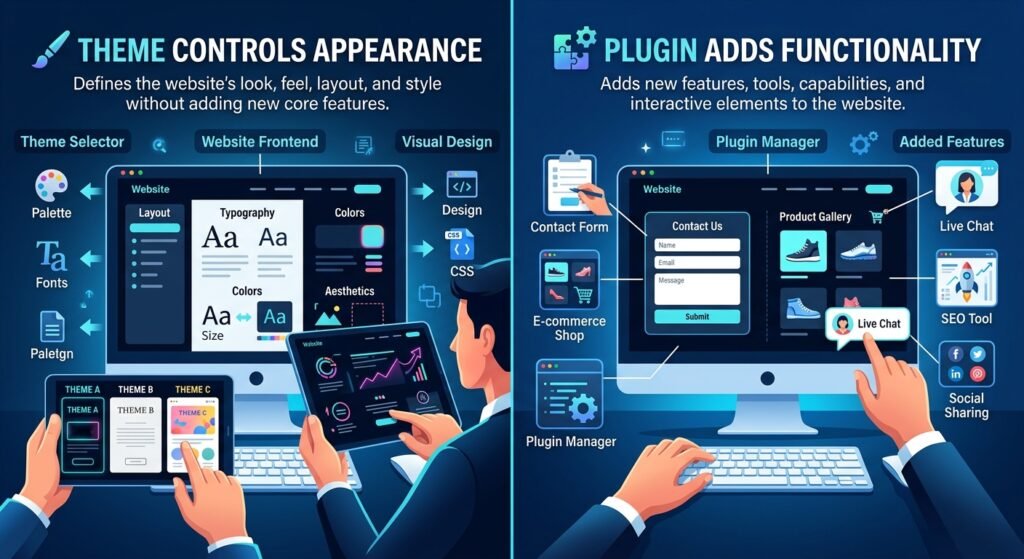
Themes and plugins are the two pillars of its customization, and beginners often confuse them. The distinction is simple but worth getting right: themes control how your site looks; plugins control what your site can do.
What Is a WordPress Theme?
A theme is a collection of files that controls your site’s appearance and layout — the design layer. It determines your site’s colors, typography, header and footer layouts, page templates, and how your content is arranged on screen.
The official WordPress.org theme directory offers thousands of free themes, each with screenshots, ratings, and reviews. Premium themes from independent sellers typically add more design options and dedicated support. Modern block themes work with the block editor to let you visually edit your entire site — including headers, footers, and templates — without code.
When choosing a theme, prioritize active maintenance (updated recently), good ratings, and compatibility with the current version. A beautiful theme that hasn’t been updated in two years is a security risk, not a bargain.
What Is a WordPress Plugin?
A plugin is an add-on that gives your site new features or changes how existing features behave. Plugins are installed from the dashboard, and most activate in seconds. The official directory lists more than 59,000 free plugins covering nearly every need: contact forms, SEO tools, caching, backups, security, galleries, social sharing, analytics, spam protection, and translation.
Premium plugins — paid add-ons from developers and marketplaces — often offer more features, priority support, and regular updates. Whether free or paid, the same advice applies: check ratings, the number of active installations, and the “last updated” date before installing anything.
How Plugins Extend WordPress Functionality
Here’s what plugin-based extension looks like in practice. A fresh installation is a solid but basic website: posts, pages, comments, media. Then plugins transform it:
- A contact form plugin adds forms with spam protection.
- An SEO plugin adds meta controls, sitemaps, and content analysis.
- A caching plugin speeds up page loading.
- A backup plugin automatically saves copies of your site.
- WooCommerce turns the site into a full online store.
- A membership plugin adds paid subscriptions and restricted content.
Each plugin taps into its extension system — the same framework the core team uses — which is why plugins can change nearly anything about how the site behaves. The practical upshot: you build functionality by installing and configuring, not by programming.
What Is a WordPress Login Plugin?
A login plugin is a plugin that customizes or secures your site’s login page and login process. “Login plugin” is a common beginner search term, and it covers a few different needs:
- Custom login page design — plugins that restyle the default login screen to match your brand (your logo, colors, background).
- Login security — plugins that limit login attempts, add two-factor authentication (2FA), or hide/rename the login page to reduce automated attacks.
- Social or passwordless login — plugins that let users sign in with Google or via email links instead of passwords.
- Custom user registration — plugins that build front-end registration and login forms for membership sites.
For most beginners, a security-focused login plugin (limiting attempts plus 2FA) is the most valuable of the bunch. Customize the login page’s appearance only if branding truly matters to your project.
What Do You Need to Build a WordPress Website?
Before building, it helps to see the full shopping list. A self-hosted website needs six things. None of them is expensive on its own, and most beginners can gather everything in an afternoon.
Domain Name
A domain name is your website’s address — the thing people type into a browser, like yoursite.com. It’s how visitors find you, and it’s also part of your brand. Domains are registered through registrars (many hosting companies are registrars too) and typically cost around $10–$15 per year for a common .com, with prices varying by extension and registrar.
Choose something short, memorable, and easy to spell. Avoid hyphens and odd spellings if you can. Many beginners buy their domain from the same company that provides their hosting, which keeps billing and setup in one place — though buying separately is fine too.
Web Hosting
Web hosting is the rented server space where your files live and run. When someone visits your domain, their browser connects to your host’s server, which runs the software and serves your pages. Without hosting, there’s no live website.
For beginners, shared hosting is the usual starting point: affordable (often just a few dollars a month) and typically bundled with one-click installation. As sites grow, options include managed hosting (the host handles updates, caching, and backups for you, at a higher price) and VPS or dedicated servers for high-traffic sites. Look for a host with a good reputation, free SSL, automatic backups, and solid uptime — and check current prices, since hosting deals change constantly.
WordPress
the software itself — free, as always. You can download it from WordPress.org, but in practice most beginners never touch the download: their hosting company’s one-click installer sets it up automatically in minutes. The installer creates the database, configures the files, and hands you an admin account.
Either way, what you get is the same: the full the core, ready to build on. (The How to Download WordPress and How to Install WordPress sections below walk through both paths in detail.)
Theme
Every site needs an active theme to display properly. It ships with a default theme, so you technically have one from the start — but you’ll almost certainly want to choose your own to match your site’s purpose and style.
Start with a free, well-reviewed theme from the official directory that’s designed for your type of site (blog, business, portfolio, store). You can preview themes before activating them, and switching later won’t delete your content. Keep the design simple at first; a clean, fast theme beats a flashy, slow one every time.
Essential Plugins
A fresh install benefits from a small set of essential plugins. You don’t need dozens — most sites run well on a handful of carefully chosen ones:
- Security — a plugin for login protection, firewalls, or malware scanning.
- Backups — automatic, scheduled backups stored off-site.
- SEO — a plugin to manage meta titles, descriptions, and sitemaps.
- Caching/performance — to speed up page loading (many hosts handle this for you).
- Contact form — so visitors can reach you.
- Spam protection — if you’ll allow comments.
Install these after your theme is set up, configure each one, and resist the urge to add more until you have a specific need.
SSL Certificate
An SSL certificate encrypts the connection between your site and its visitors, and it’s what puts the padlock icon in the browser and the “https” in your address. SSL is effectively mandatory today: browsers warn visitors away from non-HTTPS sites, and search engines prefer secure sites.
The good news: most reputable hosting companies include a free SSL certificate (usually via Let’s Encrypt) with their plans, and many set it up automatically. If yours doesn’t, ask support or install one yourself — it’s a standard, well-documented process. This is one item you should never skip or pay much for at the beginner stage.
How Do I Build My Own WordPress Website?
Here’s the complete process, start to finish. Follow these steps in order and you’ll go from nothing to a launched website. Most beginners can complete the core steps in a weekend.
Choose a Domain Name and Hosting
Start by deciding on your domain name and signing up with a hosting company. Many beginners buy both from the same provider for simplicity. Pick a plan that includes one-click installation, free SSL, and automatic backups — these three features save beginners more time than anything else.
Don’t overthink the hosting tier at this stage. Shared or entry-level managed hosting is plenty for a new site; you can upgrade later if traffic grows. What matters most is a host with responsive support, since you’ll lean on them while learning. Expect to spend a few dollars a month; introductory prices are often lower for the first billing term, so check the renewal rate before committing.
Install WordPress
With most hosts, installation means finding the one-click installer in your hosting control panel (often labeled “WordPress,” “1-Click Install,” or found in a tool like Softaculous), choosing your domain, and clicking install. The process usually takes a few minutes and creates your admin account along the way.
Choose your admin username and a strong password carefully during installation — avoid the default “admin” username, which attackers target first. Once installation finishes, you’ll get a login link (typically yourdomain.com/wp-admin). Log in, and you’re inside your new site. (See How to Install WordPress for the manual and local installation paths.)
Configure Basic WordPress Settings
Before adding content, spend twenty minutes in Settings. The essentials:
- General: set your site title, tagline, timezone, and date format.
- Reading: decide whether your homepage shows latest posts or a static page.
- Permalinks: choose the “Post name” structure so your URLs look like yoursite.com/sample-post instead of yoursite.com/?p=123. This is better for both visitors and SEO.
- Discussion: configure comment settings — whether comments need approval, for example.
- Media: check default image sizes.
These small settings shape how your site behaves, and they’re much easier to set correctly now than to fix later.
Choose and Customize a Theme
Browse themes from Appearance → Themes → Add New in your dashboard. Use the feature filters to narrow by what you need (blog, business, e-commerce), preview candidates with your content, and check ratings and the last-updated date. Activate the one that fits best.
Then customize it via Appearance → Customize (or the Site Editor, for block themes): upload your logo, set your colors and fonts, arrange your homepage layout, and configure menus. Keep it clean and readable — beginners often over-customize. A simple, fast, mobile-friendly design will serve you better than a complicated one.
Create Essential Pages
Every website needs a few core pages. Create them under Pages → Add New:
- Home — your front door; make clear what the site is about within seconds.
- About — who you are or what the organization does; builds trust.
- Contact — a contact form plus any other ways to reach you.
- Services or Products — what you offer, if applicable.
- Blog — a page to display your posts (it can generate this automatically).
- Privacy Policy — legally wise and required by many ad networks and regulations; it includes a draft generator under Settings → Privacy.
Add these pages to your navigation menu under Appearance → Menus so visitors can find them.
Install Essential Plugins
Now add your essential plugins via Plugins → Add New: security, backups, SEO, caching (if your host doesn’t handle it), a contact form, and spam protection. Install one at a time, activate it, and run through its basic setup before moving to the next.
Set up automated backups immediately — before you do anything else you can’t afford to lose. A backup plugin that saves daily copies to cloud storage means that even a worst-case disaster (a hack, a bad update, an accidental deletion) is recoverable in minutes. Test that backups actually run; an untested backup is just a hope.
Add Your Website Content
With the foundation in place, start publishing. Write your first posts or flesh out your pages using the block editor: add headings, paragraphs, images, lists, and buttons as blocks. Aim for genuinely useful content — answer the questions your visitors actually have.
A few content habits that pay off: use descriptive headings to structure long posts, add alt text to images, link related posts to each other, and write clear, specific page titles. Don’t aim for perfection on day one; a site with ten solid pages beats a site with one “perfect” page that’s been in draft for a month.
Optimize Your Website for SEO
Basic SEO setup takes under an hour and pays dividends for years. With your SEO plugin installed: write a unique, descriptive meta title and description for your homepage and key pages; make sure your XML sitemap is enabled and submitted to Google Search Console (free); check that your permalinks use post names; and add alt text to images as you upload them.
Then think about content SEO: target one clear topic per page, use the topic naturally in your title and first paragraph, structure with headings, and link between related content. The WordPress SEO Basics section below goes deeper — but this foundation covers the 80% that matters most for beginners.
Test and Launch Your Website
Before announcing your site, test it like a visitor. Check every page on both desktop and mobile; click every menu link and button; submit your contact form to make sure messages arrive; test on a couple of different browsers. Fix broken links, typos, and layout glitches.
Then run a final pre-launch checklist: SSL active (padlock showing), backups running, an SEO plugin configured, spam protection on, and your privacy policy published. When everything checks out, remove any “coming soon” or maintenance mode and start sharing your site. Launch isn’t the finish line — it’s the starting line. Plan to publish regularly and keep improving based on what your visitors respond to.
How to Download WordPress
Downloading WordPress is free and straightforward — though as you’ll see, most beginners never need to download it manually at all. Here’s how the download works on every path.
WordPress Download for Windows
There’s no special “WordPress download for Windows” as a desktop program, because it isn’t desktop software — it’s web software that runs on a server. What people usually mean by this is one of two things.
The first is downloading the installation files onto a Windows computer: go to WordPress.org, click the download button, and you’ll get a .zip file (around 20+ MB) containing all of its PHP files. You’d then upload those files to a web host or use them for a local installation.
The second — and more useful — meaning is running it locally on a Windows PC for learning and testing. Tools like Local, XAMPP, or WampServer create a web server environment on your computer so you can install and experiment with it offline, free. This is a great way to practice without paying for hosting.
WordPress Download for Mac
The same applies on macOS: The software itself is platform-independent web software, so there’s no Mac-specific version to download. You download the same .zip from WordPress.org regardless of your computer.
For running it locally on a Mac, the popular options are Local (a free, beginner-friendly tool purpose-built for the platform) and MAMP (which sets up Apache, MySQL, and PHP on macOS). With either one, you can have a working site on your own machine in minutes — ideal for learning, theme experiments, or building a site before buying hosting.
Download WordPress from WordPress.org
WordPress.org is the only official source for the software download, and it’s the one you should always use. Third-party download sites may bundle outdated or tampered files, so going straight to the source matters for security.
The process: visit WordPress.org, click “Get WordPress” or “Download WordPress,” and save the .zip file. Inside are all the core files plus the famous five-minute installation script. You’d upload these to your hosting account via FTP or your host’s file manager, then run the installer in your browser. In practice, though, most beginners skip this entirely and use their host’s one-click installer, which does the downloading and setup behind the scenes.
Is WordPress Free to Download?
Yes — WordPress is completely free to download, and it always will be. The GPL open-source license guarantees that anyone can download, use, modify, and redistribute the software at no cost, for any purpose, including commercial use.
What costs money is everything around the software: web hosting to run it on, a domain name for your address, and optionally premium themes or plugins. That’s why “is WordPress free” has a two-part answer: the download and the software are 100% free; running a public website on it involves hosting and domain costs. Be wary of any site charging you for the download itself — that’s not legitimate.